
Guides / Get your drawing ready
Duplicate lines in your DXF?
Remove the extra copies.
A duplicate line is an extra copy of a line already in your drawing. The copies sit on top of each other, so they can be hard to spot. Here’s how to check them without removing a line your part needs.
Why can’t I see the duplicate?
Two identical lines can sit directly on top of each other and look like a single line. The same thing can happen with circles, curves or a complete outline. This often happens when a shape is copied or exported more than once.
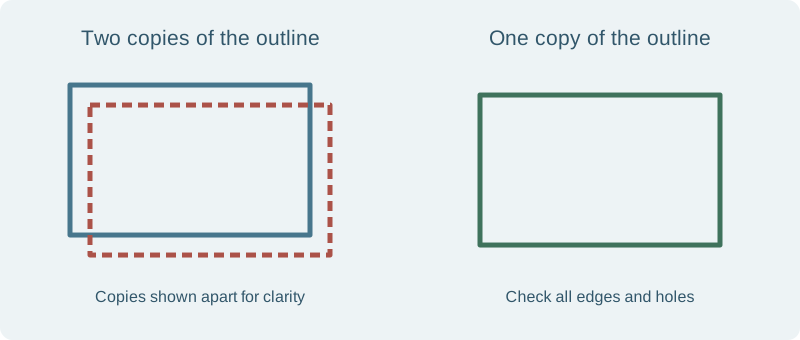
Your cutting file should contain each edge once. Extra copies can cause drawing problems and add unnecessary cutting lines. Cleaning them up helps prepare the file; the effect on price depends on your drawing. See our guide to reducing laser cutting costs.
Check and remove extra copies
- Save a copy of your original DXF.
- Open it in File Workshop and check any duplicate-line warnings.
- Zoom in on the highlighted lines. Are they copies of the same edge, or two separate edges your part needs?
- If a repair is offered, compare the drawing before and after it. Each edge should remain once, and all holes and slots should stay in place.
- After accepting a repair, check for gaps in the outlines and confirm the overall size.
The two sides of a narrow slot are separate edges. Lines that cross may also belong to different parts. Keep any line the design needs; only remove extra copies of the same edge.
The before-and-after repair examples show what to look for.
Avoid duplicates when exporting
Export one flat outline of your part, including its holes and slots. Check that you have not exported both a sketch and a model edge showing the same shape. Remove spare copies and views that you do not want cut.
If you use Autodesk Fusion, see Autodesk’s guidance on duplicate lines in DXF exports. Then reopen your exported file and use our DXF export checklist.
If your CAD software has a clean-up setting, avoid increasing its tolerance just to clear a warning. It may remove nearby lines that your part needs.
Ready to get a quote?
When each edge appears once and the drawing is the right size, choose Save and continue to quote. Select your material and thickness, then check the new quote warnings.
If a warning remains, read what it says and check that part of the drawing. If a hole or edge must fit another part precisely, check our quality and tolerance guide and discuss the fit with us before ordering.
Still stuck? Ask us.
Send us your drawing and tell us what looks wrong or which error you see.
Your design. Made in South Yorkshire.
Happy with your drawing?
Get a price for your part.
In File Workshop, choose Save and continue to quote. You can also upload a ready DXF or suitable sheet-metal STEP/STP file straight to your quote.