
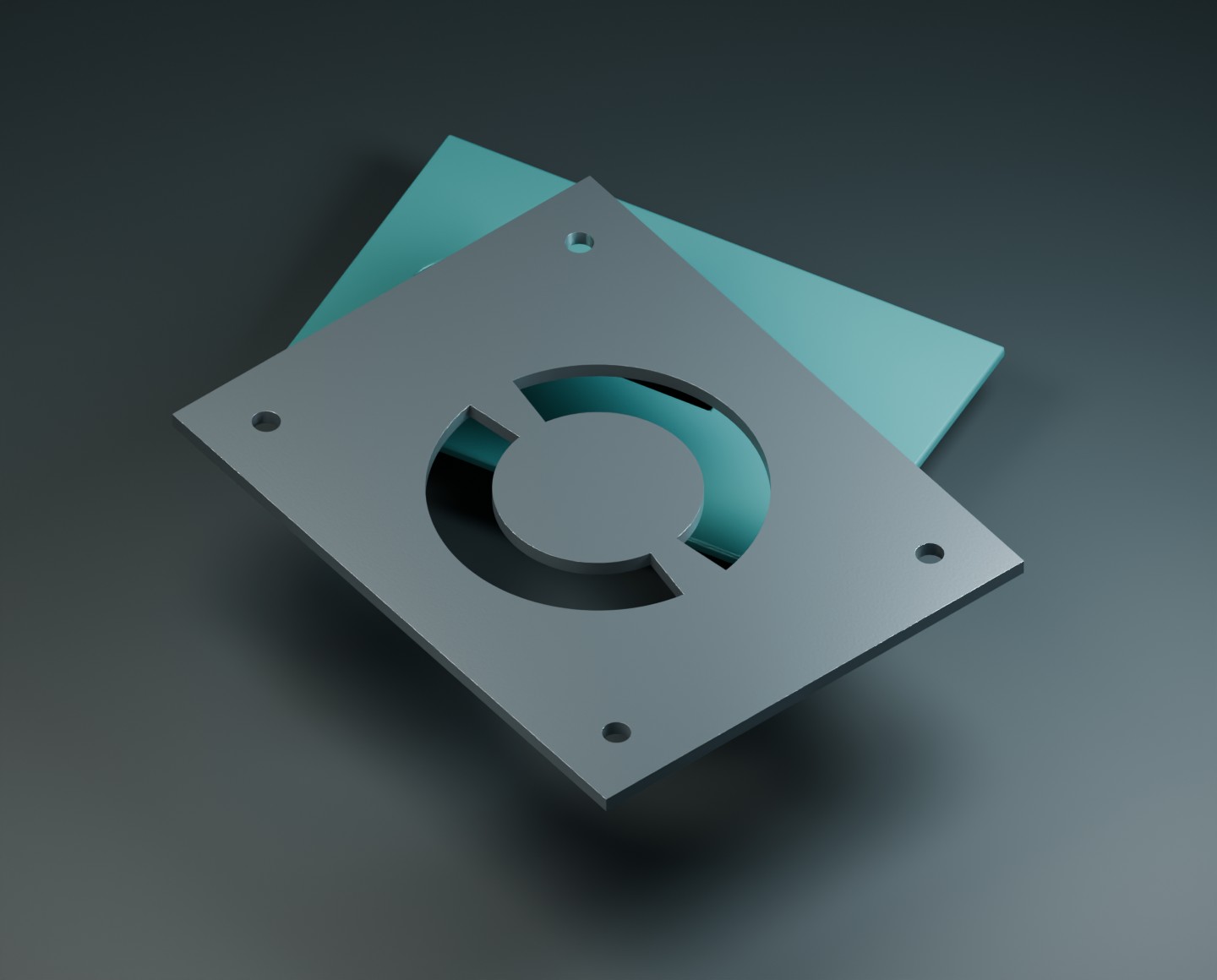
Two ways to get your file ready. The quote page accepts DXF and STEP/STP. For JPG, PNG, SVG, PDF or DWG — or a DXF that needs fixing — use the File preparation & repairs.
Sheet metal: from a folded model to a flat drawing
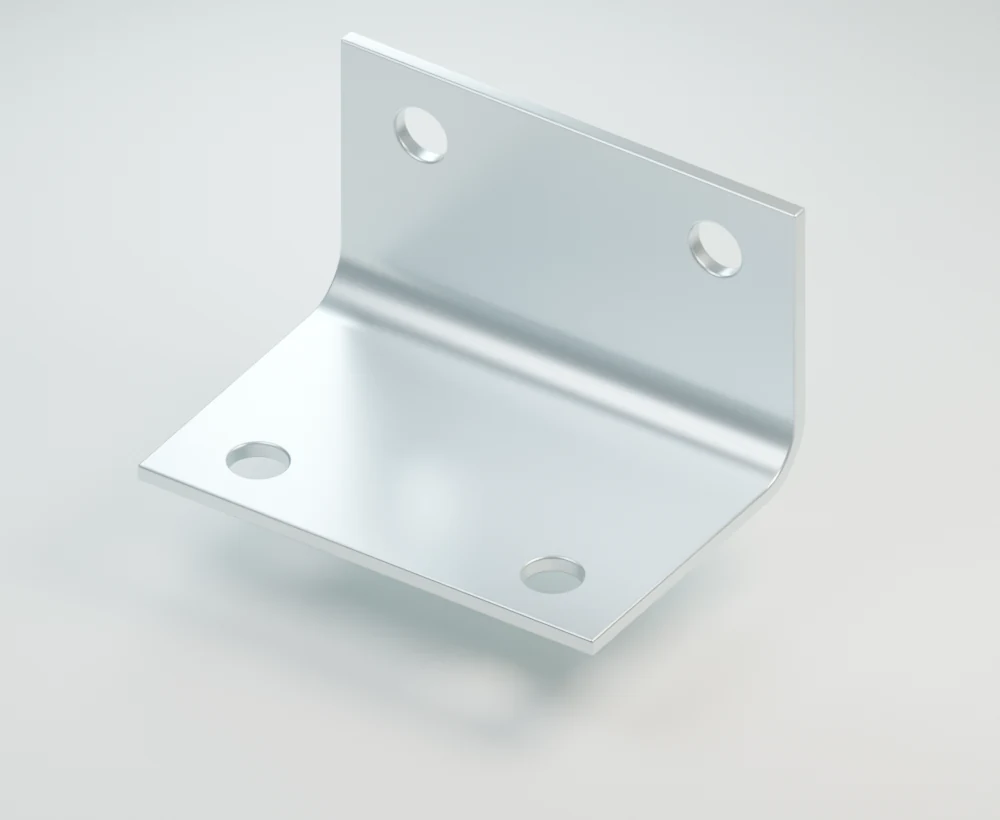
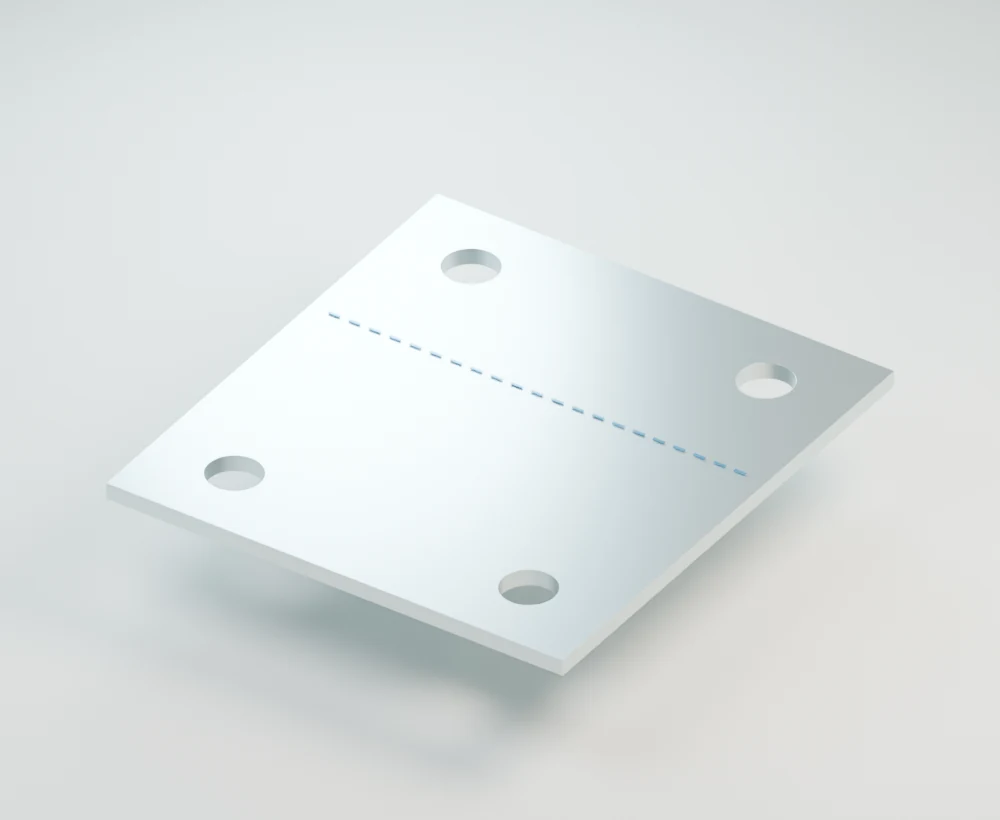
STEP/STP files first go through unfolding. The editor works on the resulting flat cutting drawing; it does not repair the original 3D model. These are illustrations, not a calculated production pattern. An arbitrary 3D model, assembly or STL mesh is not a sheet-metal blank. If the system cannot prepare a suitable flat pattern, it stops for review. Bend allowance depends on the part and process. We do not offer bending: parts are supplied flat and deburred. Read our quality and tolerances guide before ordering a critical fit.
01 / TEXT & BRIDGES
Keep the centres in place.
The middle of a letter is a separate piece.
A small bridge keeps it connected.
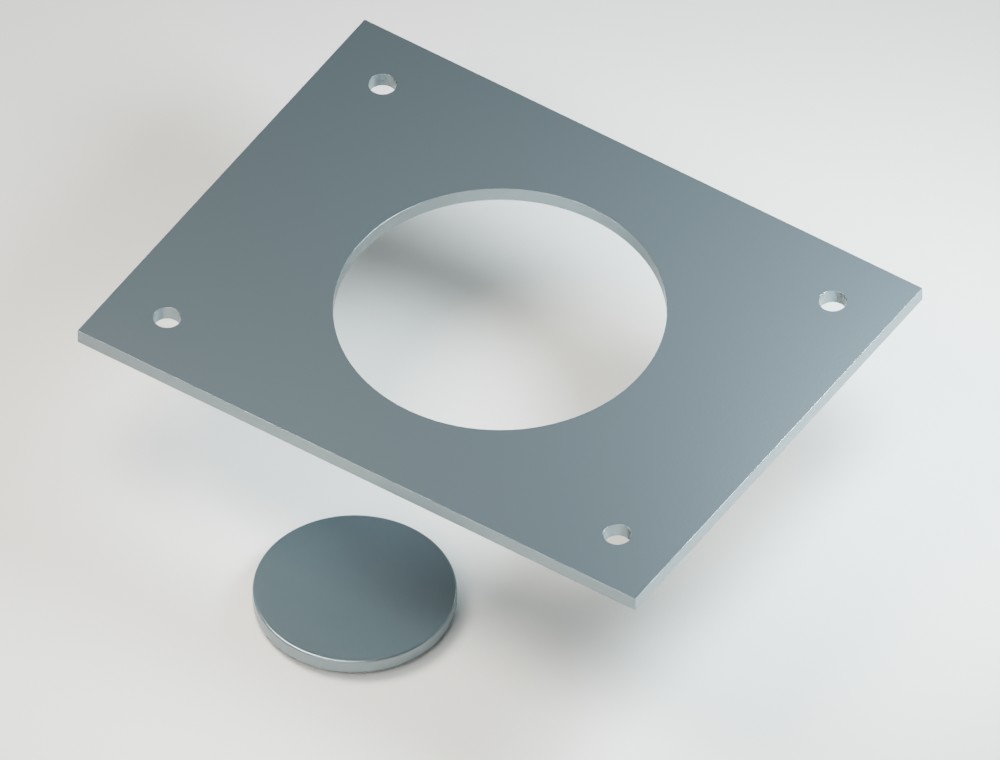
The middle falls out.
No connection means nothing holds it in place.
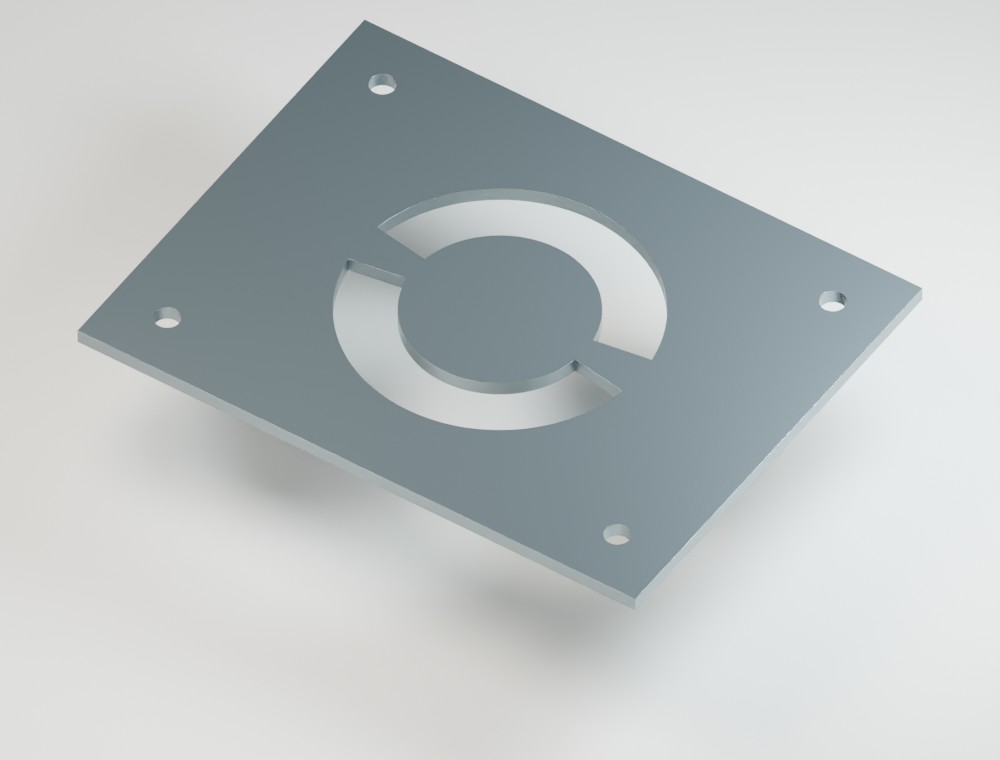
A small bridge makes it stay.
Connect the centre back to the main part.
A, O, P, R… and logos too
Any enclosed shape needs a connection if you want its centre to stay in the finished part. Add bridges in your drawing and make their width suitable for your material. If the centre should fall out, leave it unconnected. These permanent design bridges are different from temporary manufacturing micro-joints.
02 / HOLES & SLOTS
Small details. Right size.
The smallest hole or slot depends on
your material and its thickness.
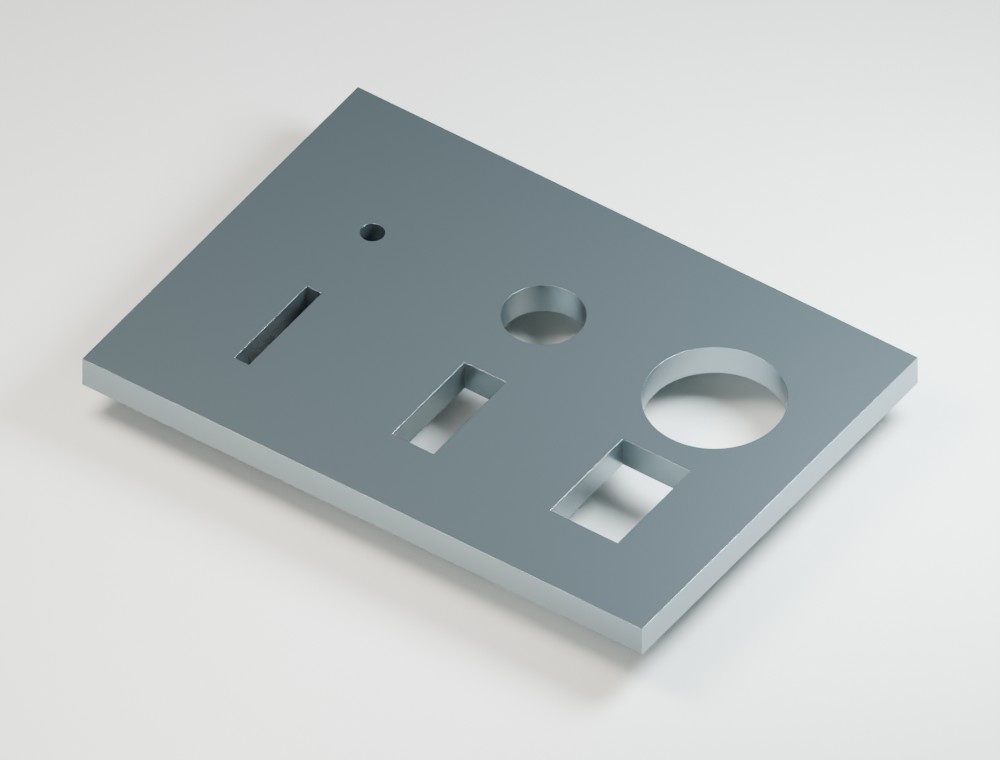
YOUR MATERIAL, YOUR MEASUREMENTS
Find your minimum.
Mild steel, stainless steel or aluminium.
For 3 mm metal sheet.
Guide values. Your quote confirms the current production limits.
Minimum size or functional fit?
The minimum is the smallest internal feature listed for cutting. A hole for a bolt or pin also needs clearance for the intended fit. Narrow connections left between cuts need their own care; the minimum hole size is not a bridge-width rule.
All material and thickness limits
| Material | Thickness | Min. hole / slot | Min. part | Max. part |
|---|---|---|---|---|
| Metal | 1 mm | 0.7 mm | 15 × 15 mm | 900 × 900 mm |
| Metal | 1.5 mm | 0.7 mm | 15 × 15 mm | 900 × 900 mm |
| Metal | 2 mm | 0.8 mm | 20 × 20 mm | 850 × 850 mm |
| Metal | 3 mm | 1.2 mm | 25 × 25 mm | 800 × 800 mm |
| Metal | 4 mm | 1.5 mm | 30 × 30 mm | 700 × 700 mm |
| Metal | 5 mm | 2.2 mm | 40 × 40 mm | 600 × 600 mm |
| Metal | 6 mm | 2.8 mm | 50 × 50 mm | 500 × 500 mm |
| Acrylic | 3 mm | 0.7 mm | 12 × 12 mm | 500 × 500 mm |
| Acrylic | 5 mm | 1.5 mm | 20 × 20 mm | 500 × 500 mm |
Metal covers mild steel, stainless steel and aluminium. Reference values only; your selected quote confirms availability and current limits.
THE MATERIAL YOU LEAVE BEHIND
Give delicate details some support.
Check the strips between holes
and the material near an outside edge.
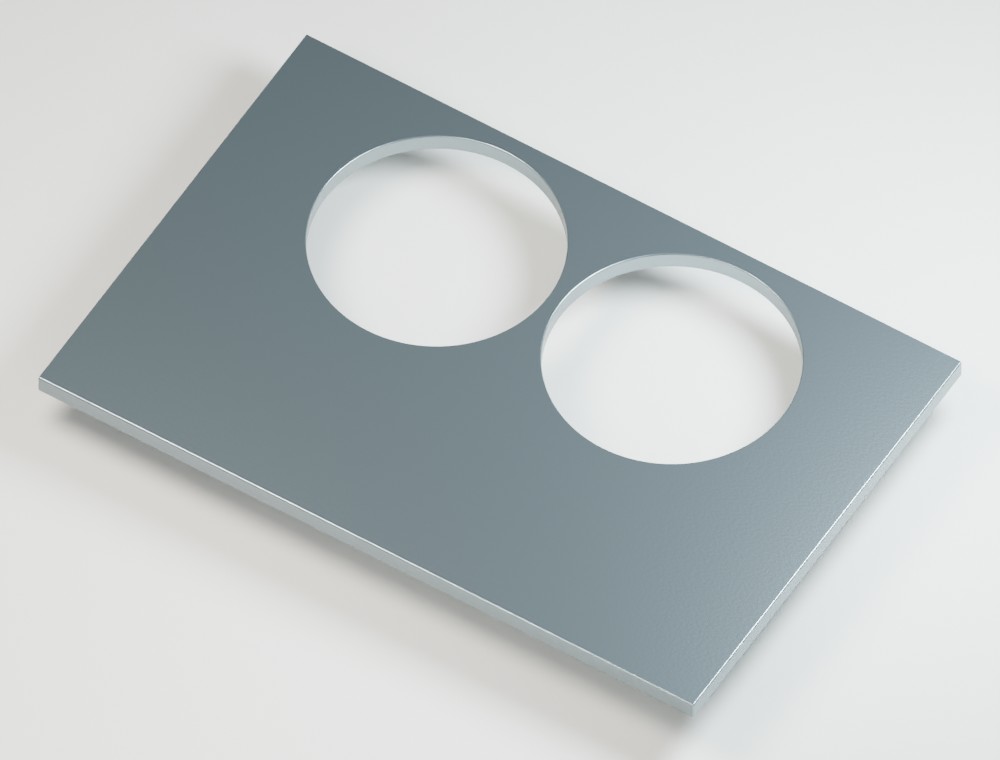
Very little material left.
Thin strips can be fragile.
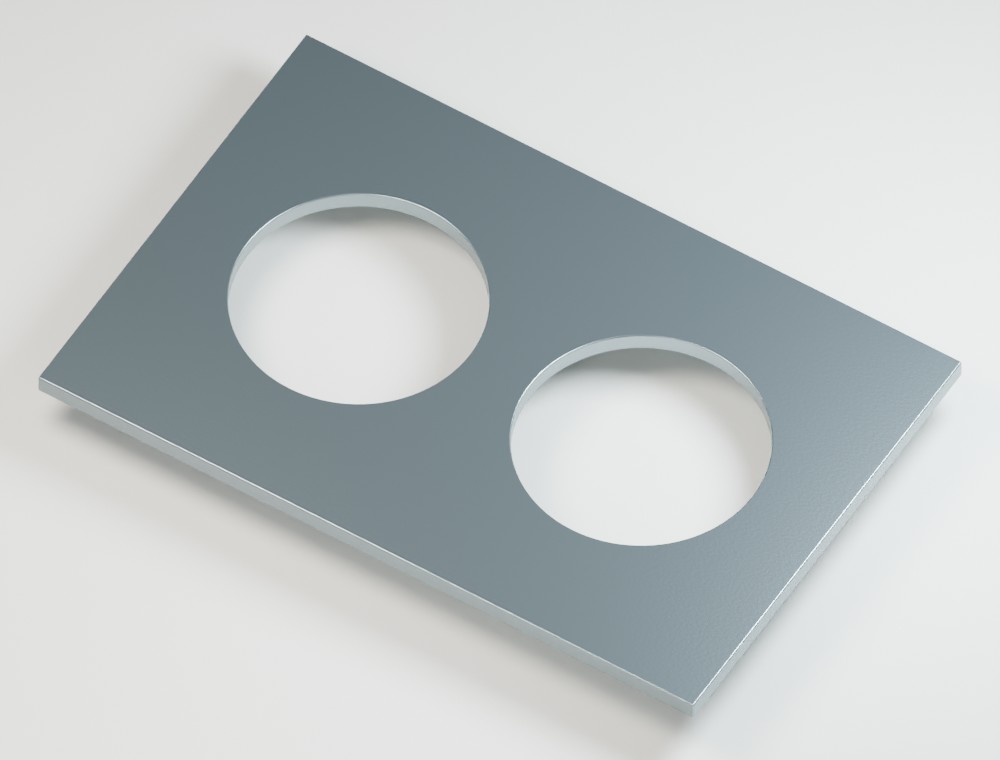
Room around each cut.
Move features apart and away from the edge.
The right width depends on your material, thickness and how the part will be used. Ask us about delicate features if you’re unsure.
Fitting a bolt? The cutting minimum and a comfortable fit are different things. Allow some clearance.
See below03 / BOLT CLEARANCE
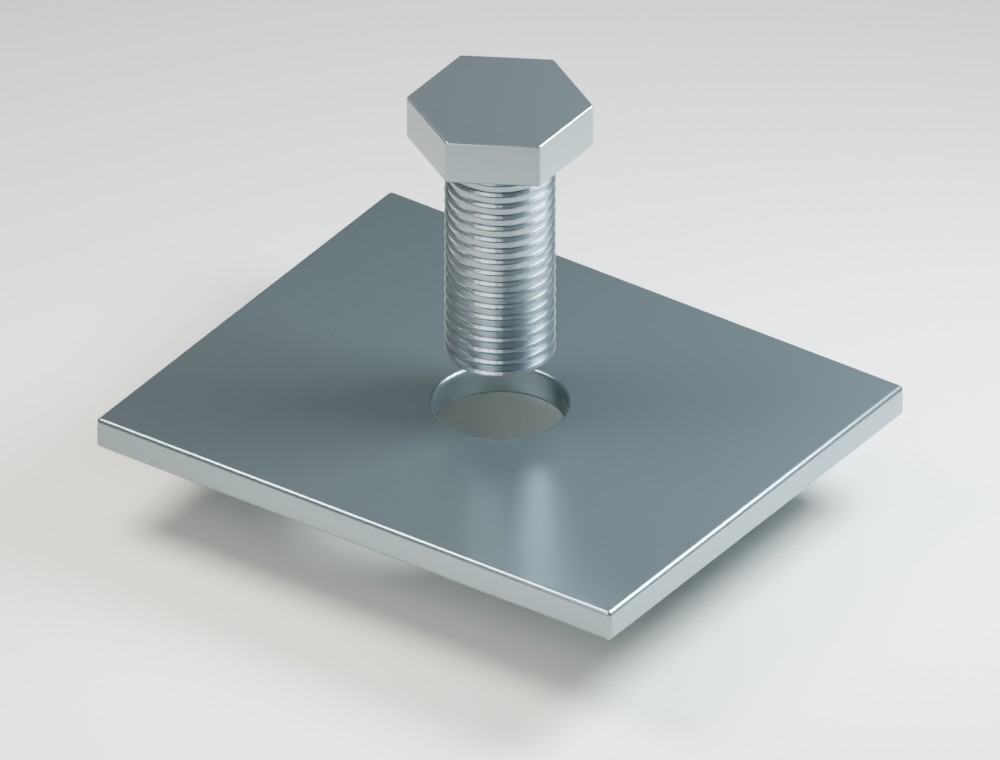
Give the bolt a little room.
A pass-through hole should be slightly
larger than the bolt going through it.
Choose your bolt.
+0.2 mm clearance
+0.4 mm clearance
For clearance holes, not threaded holes or precision fits. Gap shown enlarged for clarity.
Which fit should I choose?
Choose the closer clearance when you want less movement around a pass-through bolt. Choose the larger clearance for easier assembly. For bearings, locating pins, tapped holes or a critical fit, ask us before ordering.
04 / YOUR CUTTING FILE
A clean file. A clear cut.
Keep the geometry you want cut.
Remove everything else.
Remove dimensions, notes, borders, hidden objects and duplicate lines before export.
Join endpoints, trim crossings and keep each cut path only once. Gaps are enlarged here for clarity.
Convert text to outlines or curves. For cut-out lettering, add bridges to any centres you want to keep.
Remove stacked duplicate lines and keep separate parts from overlapping. The duplicate is shown slightly offset here so you can see it.
Set units to millimetres and export at 1:1. Reopen the DXF and measure a known feature before uploading.
Need help cleaning this up? See what Drawing Workshop can repair ↗
Our preferred cutting format.
Set the drawing units to mm.
Check a known dimension after export.
05 / OVERALL PART SIZE
Every little bit counts.
Measure the complete outline,
including tabs and projections.
FOR YOUR SELECTED MATERIAL
3 mm metal
Minimum part: 25 × 25 mm
Guide values. Check the exact limits in your quote.
All material limitsOutside the online range?
Send us your drawing for advice on oversized or unusually small parts before ordering.
06 / ONE LAST LOOK
Ready when you are.
Check your design before uploading a DXF, STEP or STP file.
A handy reminder — no need to tick these to get a quote.
LET’S MAKE SOMETHING.
Ready to make
your part?
Upload a DXF or suitable sheet-metal STEP/STP for a quote.
A little more help.
What are micro-joints?
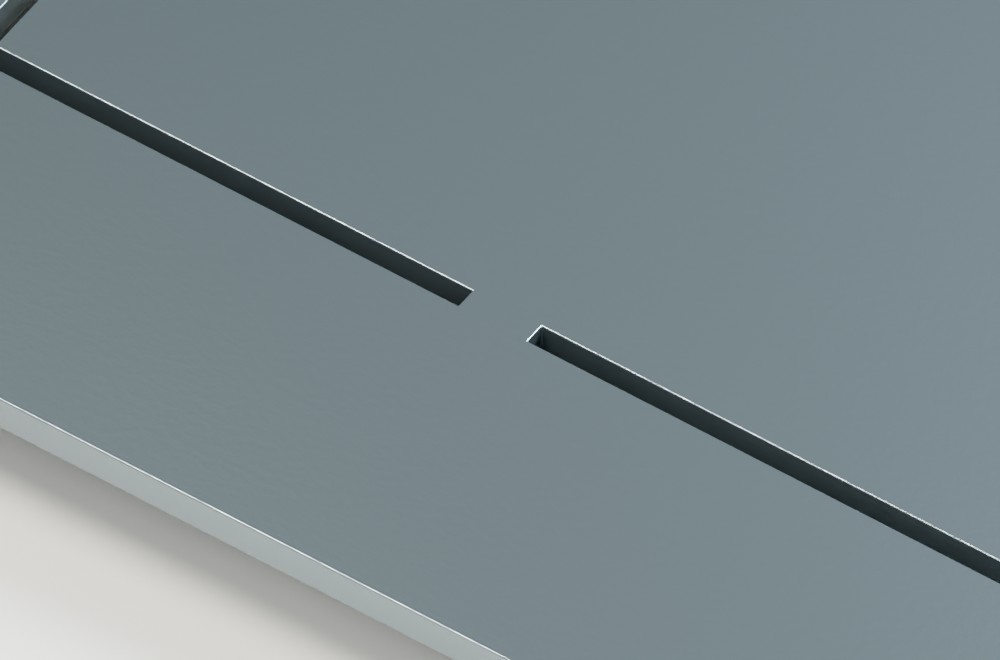
Micro-joints are temporary tabs used during manufacturing to hold a part securely in the sheet. A small mark can remain after removal. They are different from the permanent stencil bridges you draw to retain the centres of letters.
What if my quote flags a problem?
Review the highlighted feature and check the chosen material and thickness. Use “Fix in file editor” when offered, or adjust your original drawing and upload it again. See the visual repair guide, then check any changes before continuing to quote. If you are unsure, ask us to take a look.
My part needs a precise fit. Can you help?
For bearings, locating pins, threaded holes or other critical fits, contact us before ordering. The clearance examples above are for bolts passing through the part.