
Guides / Get your drawing ready
A gap in your DXF?
Here’s how to check it.
An ‘open contour’ is an outline with a gap. The lines around your part or a hole do not quite meet. This guide helps you find the gap and decide how to fix it.
What does ‘open contour’ mean?
A contour is the outline around your part or a hole. ‘Open’ means there is a gap in that outline. Two line ends may not quite meet, or a whole section may be missing. Even a tiny gap can trigger a drawing warning.
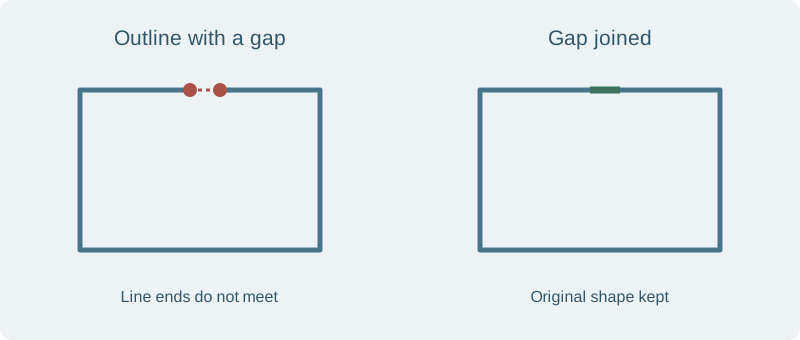
If the opening is an intentional slit, leave it open. Check our guidance for relief cuts or ask us if you are unsure.
Find the gap
- Save a copy of your original drawing before making changes.
- Open your DXF in File Workshop.
- Check that the drawing is the right size. Incorrect units can make a small gap look much larger.
- Read the drawing warnings and zoom in on the outline with the problem.
- Compare it with your original design. Should the two line ends meet, or is a section missing?
Choose the right fix
| What you see | What to do |
|---|---|
| A small gap where two line ends should meet | If File Workshop offers a repair, check the new join. Accept it only if it keeps the shape you intended. |
| A missing edge or a large gap | Open the original drawing in your design software and draw the missing section. A repair tool cannot decide its shape or size for you. |
| A slit that belongs in the design | Leave it open. Check the drawing guidance or ask us how to prepare it for cutting. |
| Lots of gaps in traced artwork | Start with clearer artwork or redraw the outline. See the artwork examples. |
See the before-and-after repair examples. A join must keep the correct shape; gap size alone does not tell you whether a repair is right.
Check the shape after the repair
- The gap is closed where it should be.
- No corner has been cut across or changed.
- Every hole and slot is still in the right place.
- The width, height and hole sizes still match your design.
- You have checked any remaining warnings, including duplicate lines.
When the drawing is right, choose Save and continue to quote. Select your material and thickness, then check the quote warnings. Holes and slots must still meet the cutting limits for your chosen sheet thickness.
Still stuck? Ask us.
Send us your drawing and tell us what looks wrong or which error you see.
Your design. Made in South Yorkshire.
Happy with your drawing?
Get a price for your part.
In File Workshop, choose Save and continue to quote. You can also upload a ready DXF or suitable sheet-metal STEP/STP file straight to your quote.