Have a sketch or photo?
Turn it into a cutting drawing, then check the shape and sizes.
Sketch & photo tips
Drawing Workshop
Start with a sketch, photo or existing file. Check your part and get a laser cutting quote. No CAD skills needed.
For flat parts. Bring the measurements you know.
01 / Sketch & photo examples
Your sketch, drawing or photo becomes a cutting drawing you can check and edit.
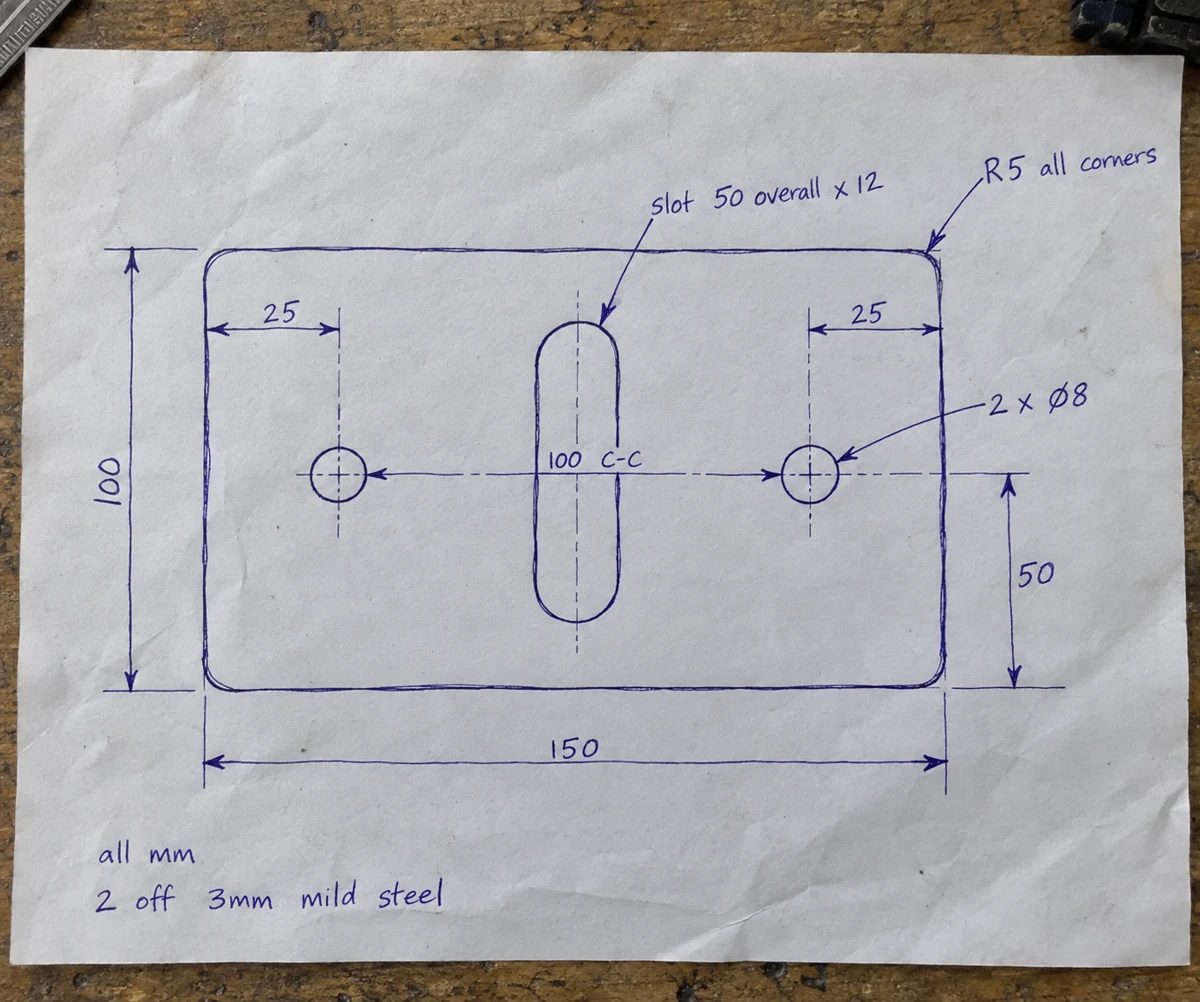
Show the shape and write the sizes you know.
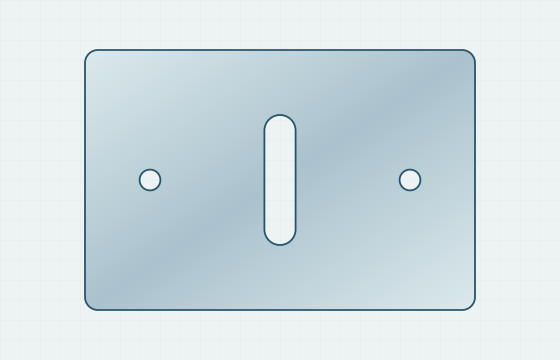
Check the outline, holes and slot against your sketch.
150 × 100 mm · 2 holes · 1 slot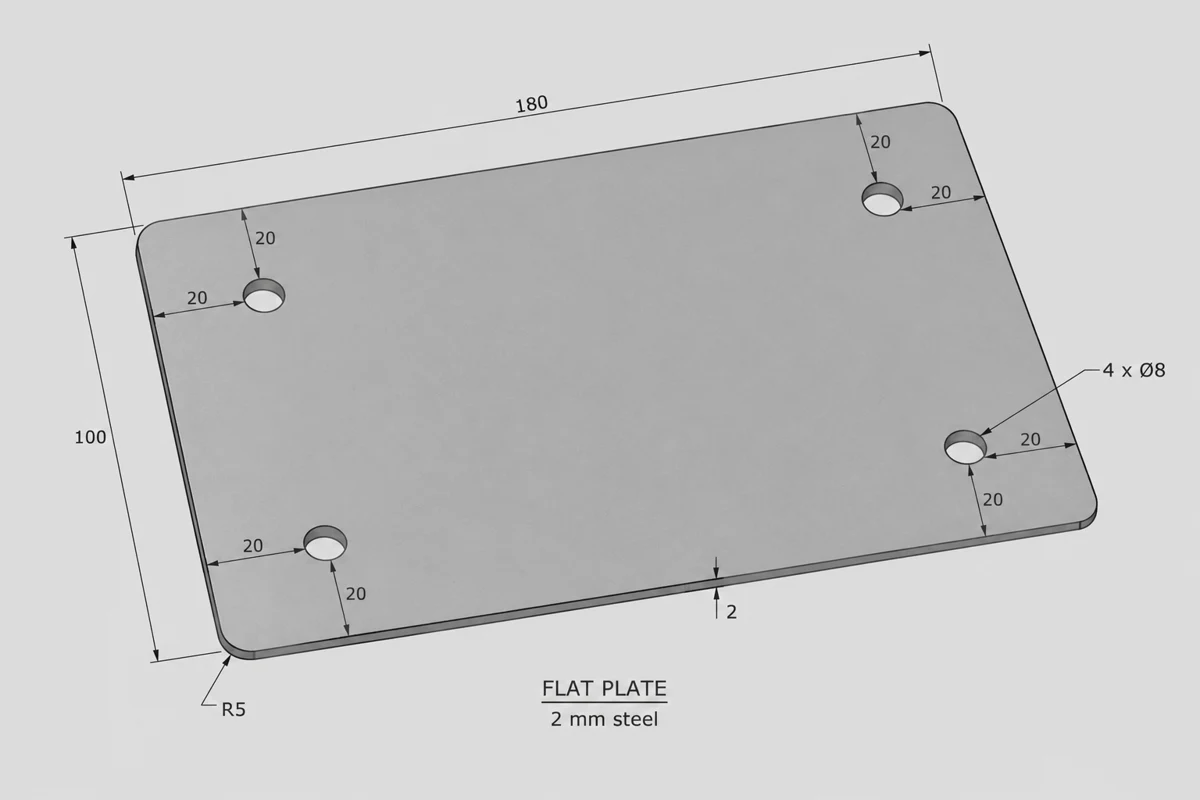
Use a clear drawing. For a PDF, choose one page.
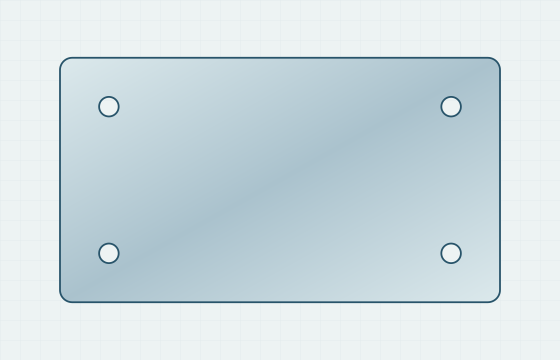
Check the shape and confirm any missing sizes.
Check the shape and sizes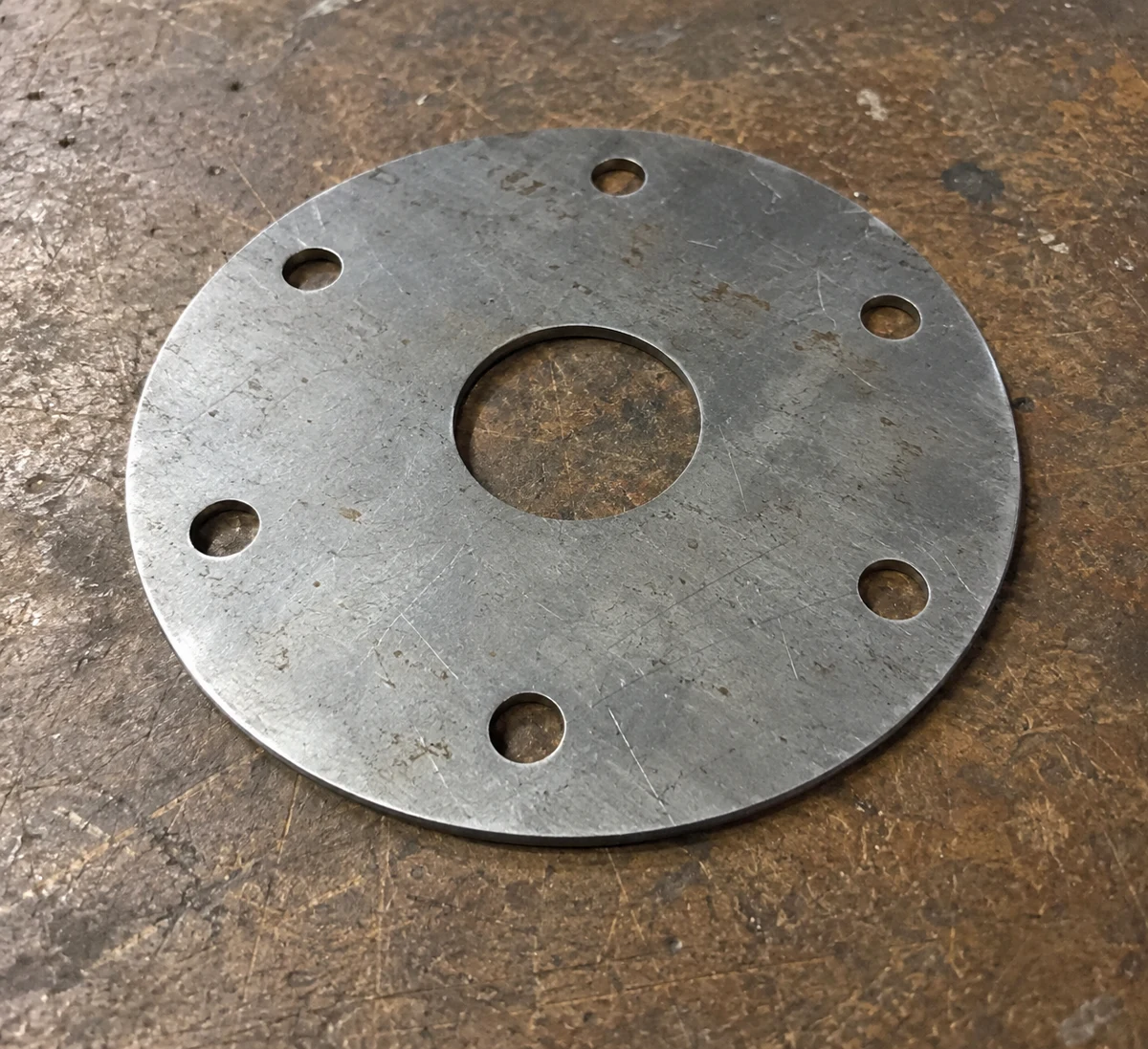
Show the whole part from above, with every edge visible.
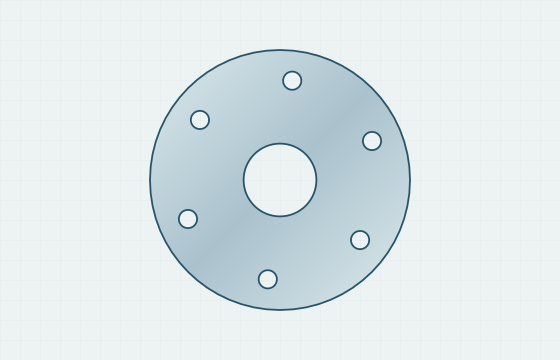
Add measured sizes. A photo cannot tell us the real dimensions.
Estimated shape · real dimensions neededExample inputs and actual app outputs. Check your own dimensions.
02 / Three simple steps
Choose a sketch, photo, CAD drawing or artwork.
Confirm the shape, holes and measurements. Edit anything that needs correcting.
Choose material, thickness and quantity to get a cutting quote.
03 / Sketch & photo tips
A clear view and real measurements make the difference.
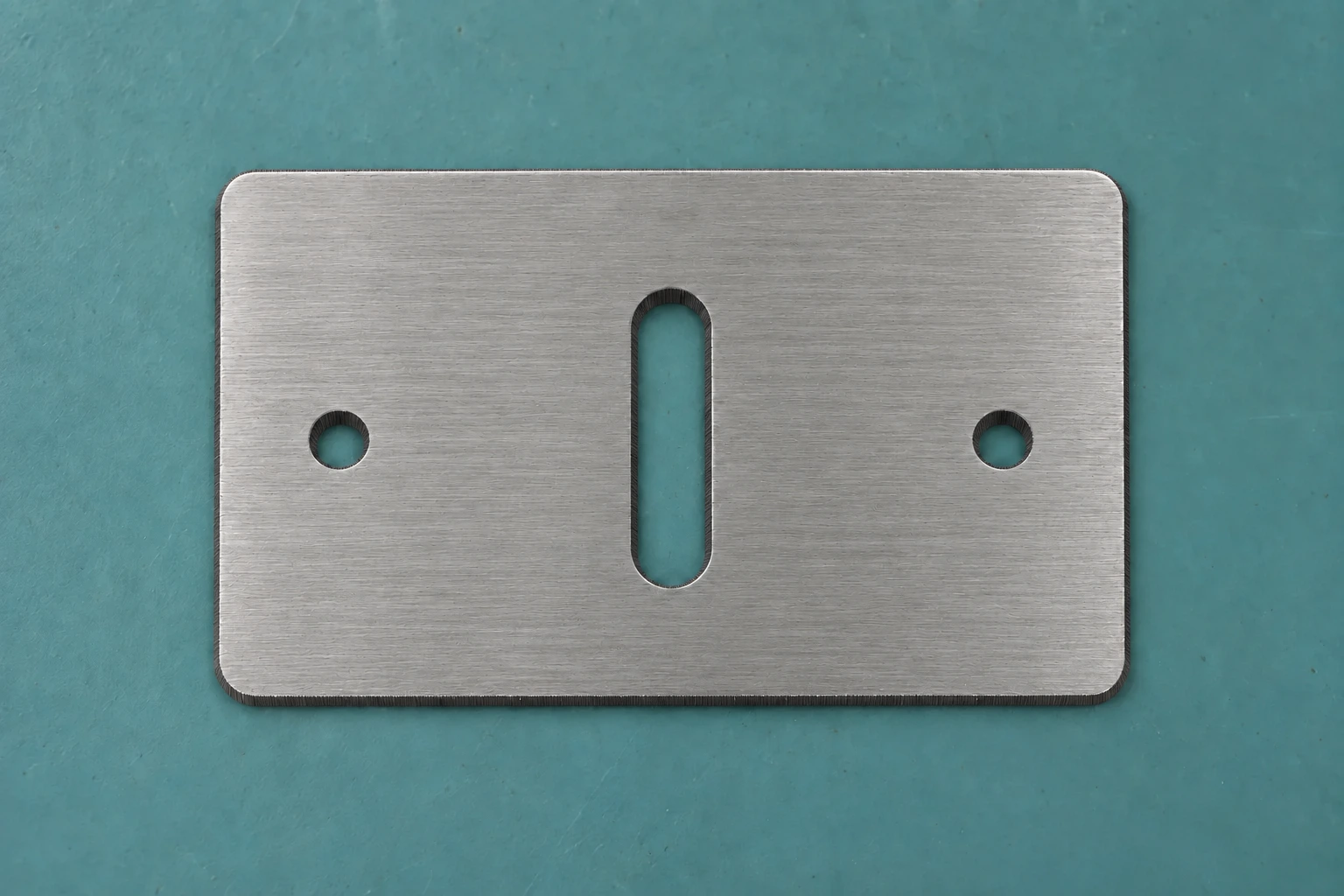
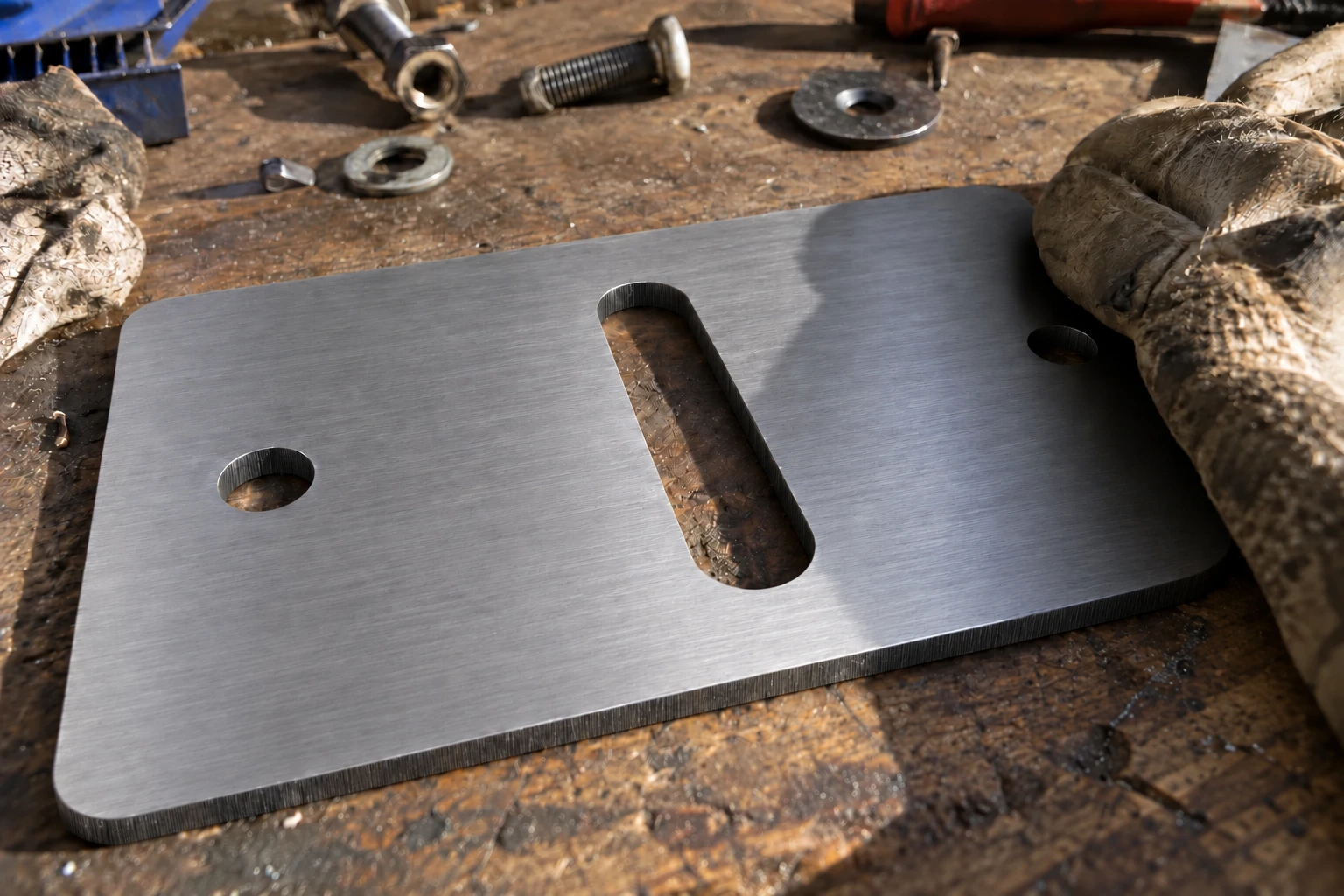
Illustrative photos showing clear and obstructed views.
For flat laser-cut parts. The app does not establish folds or hidden 3D details. AI can miss features or misread sizes—check your drawing before getting a quote.
No CAD skills needed.
Open Drawing Workshop with your sketch, photo or existing file.