DXF / DWG
Full-size 2D geometry in millimetres. Keep only the cutting paths; remove dimensions and drawing borders.

THE VISUAL FILE GUIDE
Start with a different file in File Workshop.
Prepare suitable artwork or review drawing repairs.
01 / MORE WAYS TO START
Trace suitable artwork, or clean up an existing DXF.
Check the prepared drawing, then continue to quote.
A solid black shape on white.
White holes are cut out.
Check the outside edge, all three holes
and the slot. Confirm the real size.
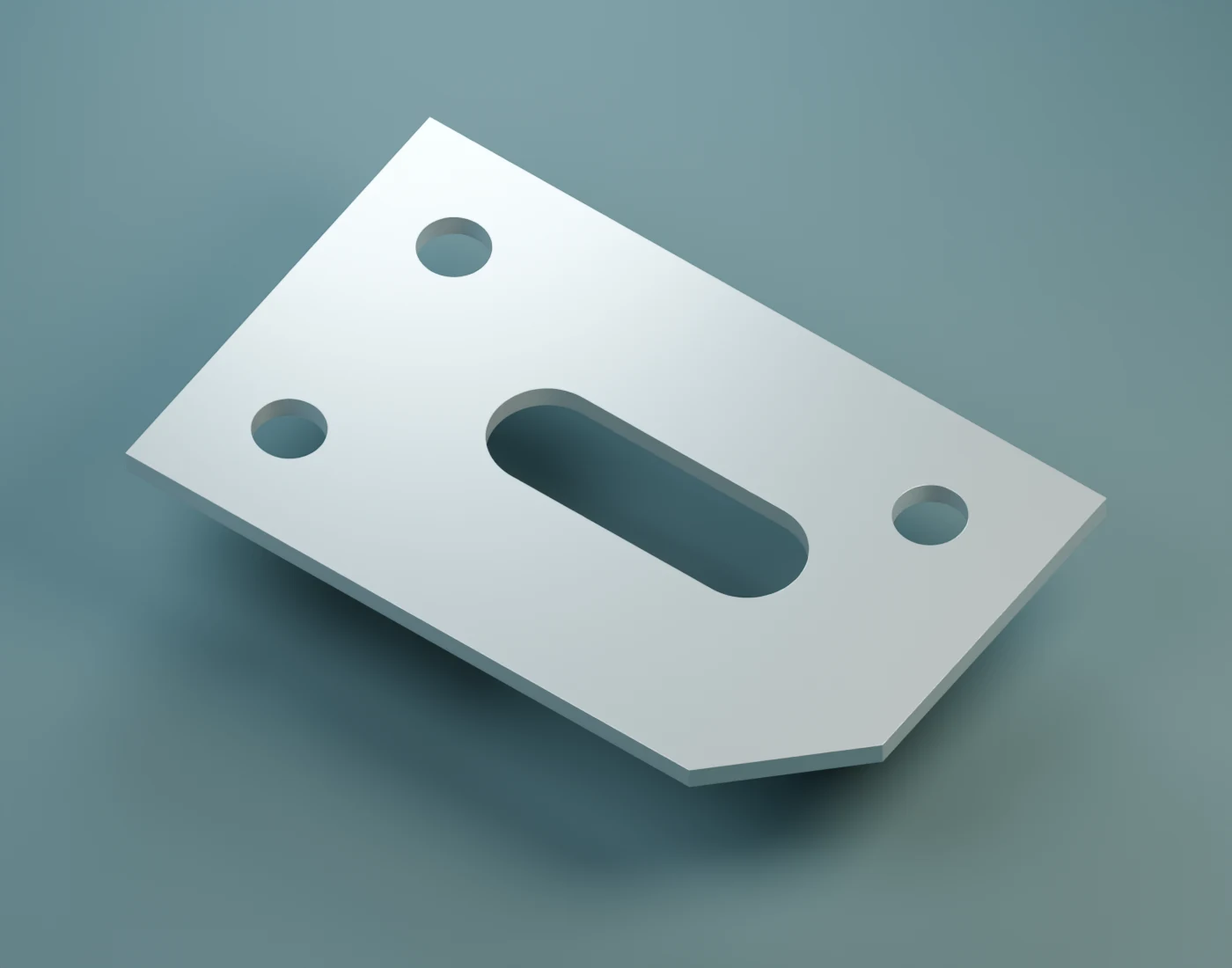
The same shape, shown in metal.
Illustration of the finished part.
File Workshop prepares the cutting geometry.
It cannot recover exact dimensions from a photo or invent missing detail.
Upload artwork or a drawing. Select the part you want to prepare if there are several.
Compare the preview with your original. Review warnings and any proposed repairs.
Confirm millimetres, the overall size and a known hole or feature. Keep proportions locked.
Choose Save and continue to quote. Review material, thickness and the quote checks.
Ready DXF, STEP and STP files can go straight to quoting. Use File Workshop for other formats or to review drawing repairs.
Full-size 2D geometry in millimetres. Keep only the cutting paths; remove dimensions and drawing borders.
Real vector paths. Convert intended cut text to outlines. PDF must be one page, with no embedded images.
A sharp, solid black shape on white. Check the traced detail and set the finished size yourself.
See good and bad examples ↓One sheet-metal body of consistent thickness. Suitable models are unfolded first. The editor then works on the flat drawing, not the original 3D model.
See the sheet-metal example ↓DWG needs the conversion service to be available. AI, BMP, TIFF and STL are not accepted by File Workshop. Export suitable DXF or SVG paths from your original software instead.
02 / JPG & PNG: KEEP IT BLACK AND WHITE
Export flat, front-on artwork from your software.
No shading, shadows or perspective.
File Workshop traces the boundaries between black and white. Every unwanted mark can become another outline.
Show the whole part with a little white space around it. Make small holes and gaps clear enough to see.
For JPG and PNG, use a filled silhouette. A thin line drawing can trace both sides of each line. Export vector paths as DXF or SVG when you have them.
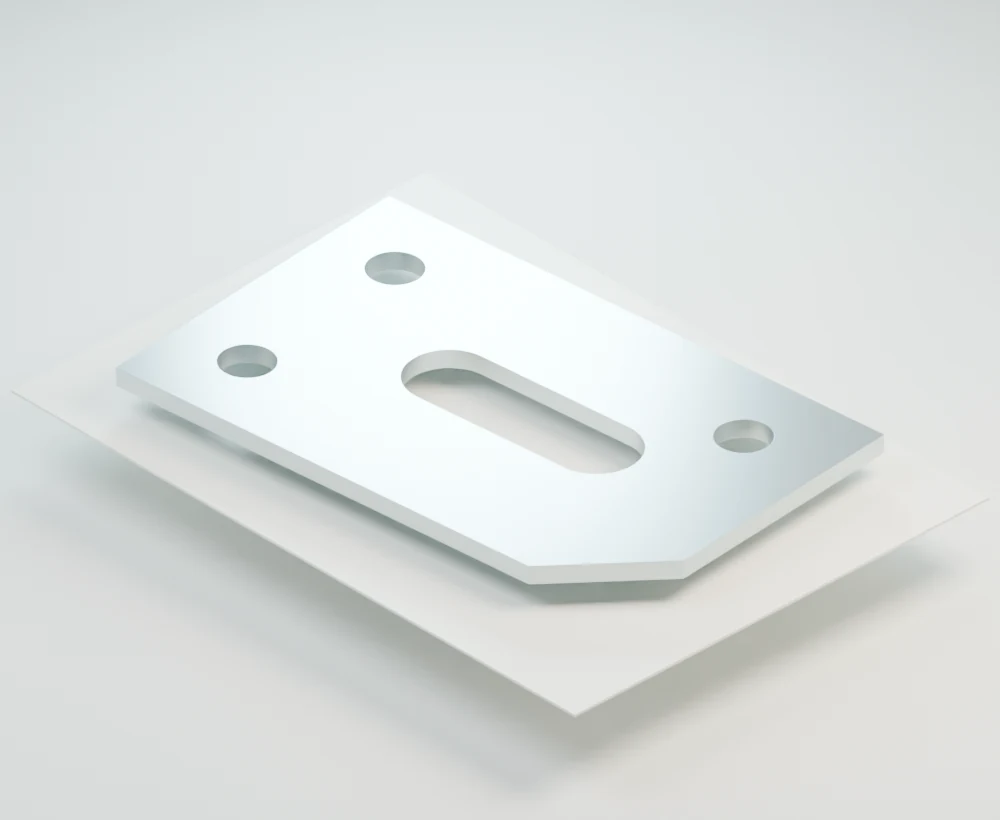
Lighting and angled edges do not describe the flat cutting shape.
Faded areas can disappear or change shape when traced. Use solid black.
If a hole or edge is unclear, File Workshop cannot reliably reconstruct it.
Labels, page frames and stray marks can become unwanted cutting paths.
BEFORE EXPORTING FROM YOUR SOFTWARE
PDF: WHAT’S INSIDE MATTERS
Export one page of real vector outlines from your design software.
Multi-page PDFs and PDFs containing embedded images are rejected, even if some vector lines are present.
SAME IMAGE. DIFFERENT FINISHED SIZE.
Enter a known width or height. Keep proportions locked so circles stay round. Unlocking proportions stretches the part and changes its features.
Illustration only. This slider does not edit your file.
03 / ALREADY HAVE A DXF?
File Workshop can help repair cutting geometry.
Compare every proposed change with your original.
The editor can join suitable small, local gaps. Review the new segment before accepting it. Large gaps need a design decision; an intentional slit should not be closed automatically.
Verified duplicate paths can be removed while keeping the intended edge. Duplicate cuts can add unnecessary cutting length and cost. Intersecting parts need a closer look.
Replay shows the same outside edge twice on the left and once on the right.
Hide drawing-aid layers or remove unwanted marks. If the file contains several parts or views, choose the part you actually want. Keep every intended hole.
File Workshop can suggest restoring suitable segmented circles and arcs. Compare Original and Prepared before applying the change; some faceted shapes are intentional.
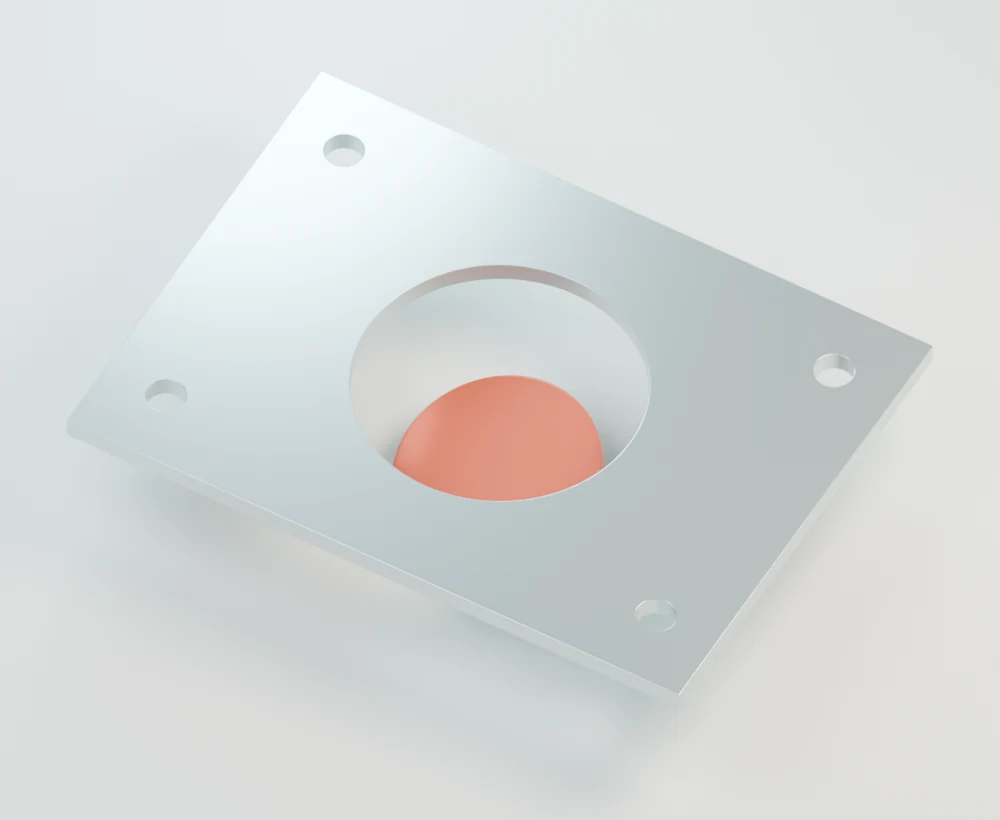
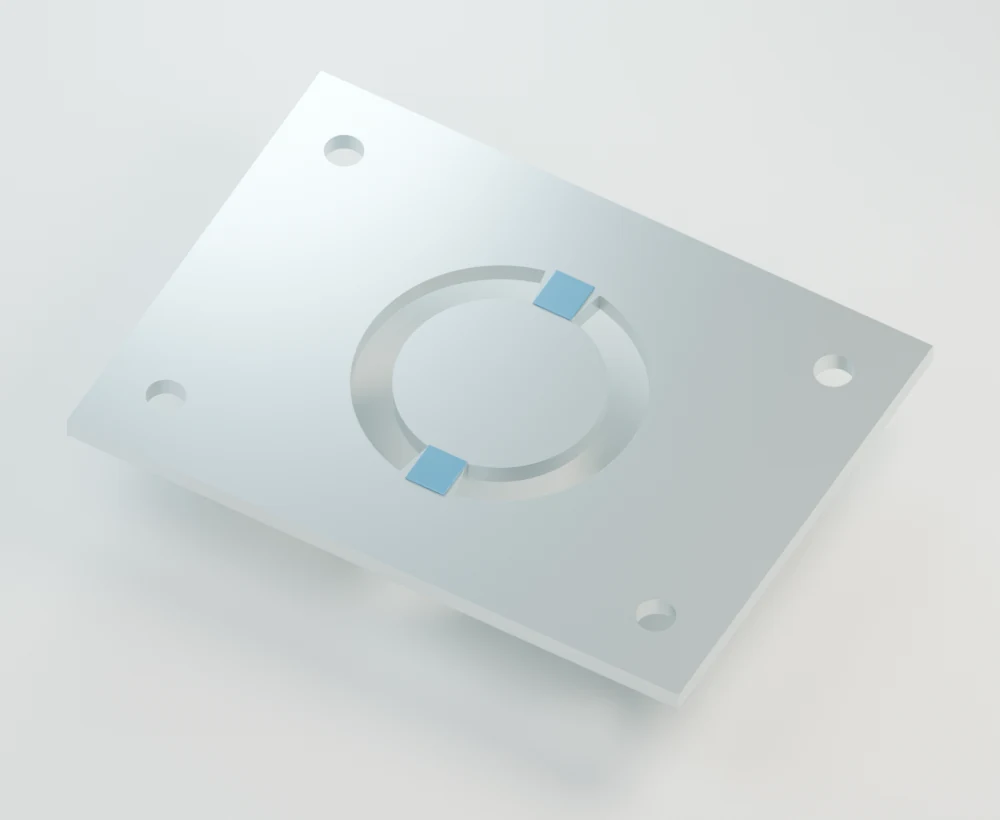
Review suggested bridges only where a centre should stay attached. Bridges change your design; their placement and width must suit the material and use. Leave intended holes open. Blue highlights identify uncut metal; dimensions are illustrative.
SOME ISSUES NEED YOUR DECISION
04 / BACK TO YOUR QUOTE
Check the prepared drawing before using it for an order.
Check the design & cutting rules ↗Personal reminders. The file and quote checks still apply.
ONE LIBRARY. ONE ORDERING JOURNEY.
From a quote warning, choose “Fix in file editor” when offered.
In File Workshop, choose “Save and continue to quote”.
There is no need to download and upload the prepared file again. Review the new quote checks after saving, including any bend or material decisions.